How Browsers Work
Web browsers let users access and interact with the information on the internet
When a user enters a URL or clicks a link, the browser runs a series of actions to fetch the content from a server and display it.
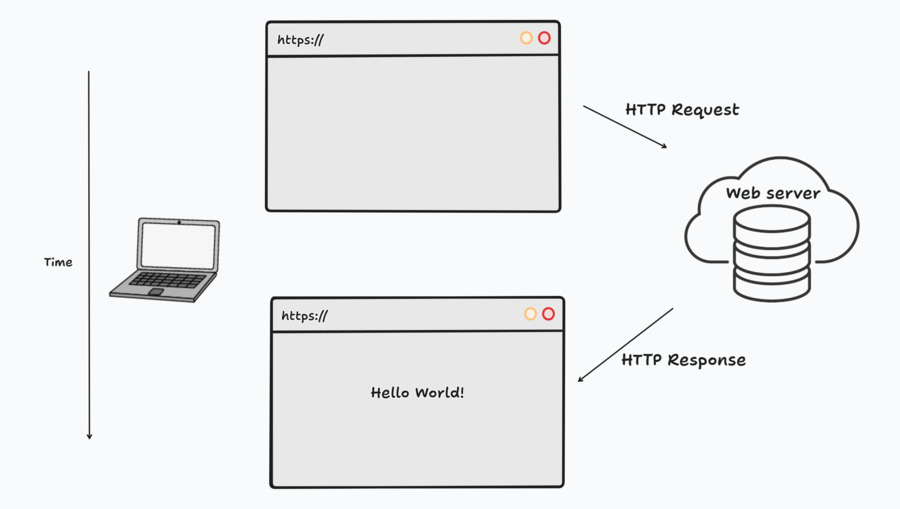
What does a browser do?
- DNS Resolution
- HTTP exchange
- HTML Parsing and Rendering
DNS Resolution
Imagine you want to visit: mohammadshehadeh.com
- Your computer first checks its local DNS cache to see if it already knows the IP address for "mohammadshehadeh.com"
- If not, it asks a DNS resolver (usually from your internet service provider) to find the IP address.
- The resolver checks its own cache. If it doesn't have the IP, it asks the authoritative DNS server for "mohammadshehadeh.com"
- The authoritative DNS server knows the IP for "mohammadshehadeh.com" and gives it to the resolver.
- The resolver stores the result in its cache and sends the IP address back to your computer.
- Your computer can now connect to the web server at that IP address to load the website.
In short, DNS resolution translates human-friendly domain names into IP addresses, so your device can find and connect to the right server.
HTTP exchange
The browser sends an HTTP or HTTPS request to the server at that IP address, specifying the path and parameters of the requested resource.
If the website uses HTTPS, the browser sets up a secure connection using SSL/TLS.
Once the server receives the request, it sends an HTTP response back with the requested resource as HTML, CSS, and JavaScript code.
HTML Parsing and Rendering
-
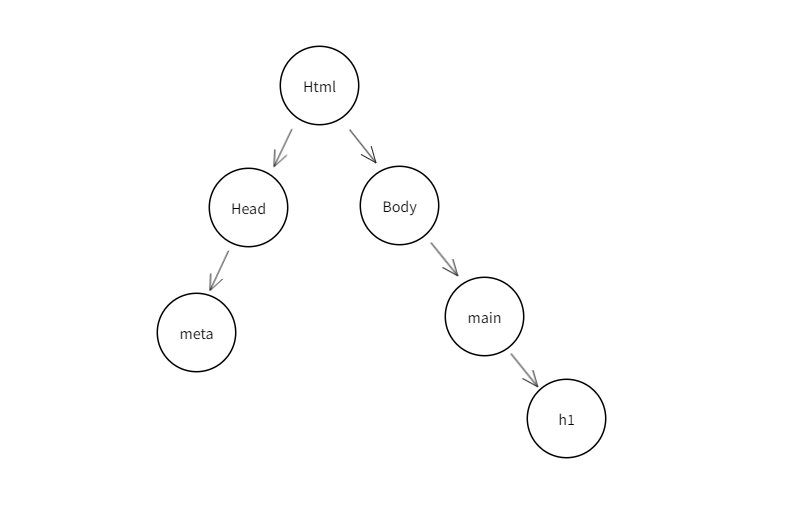
DOM Tree:
the browser parses the HTML to build the Document Object Model (DOM), a tree-like structure that represents the web page.
-
CSSOM Tree:
after building the DOM tree, the browser builds the CSS Object Model (CSSOM) by combining the DOM tree with the CSS (Cascading Style Sheets) rules to determine the layout and visual presentation of the content.
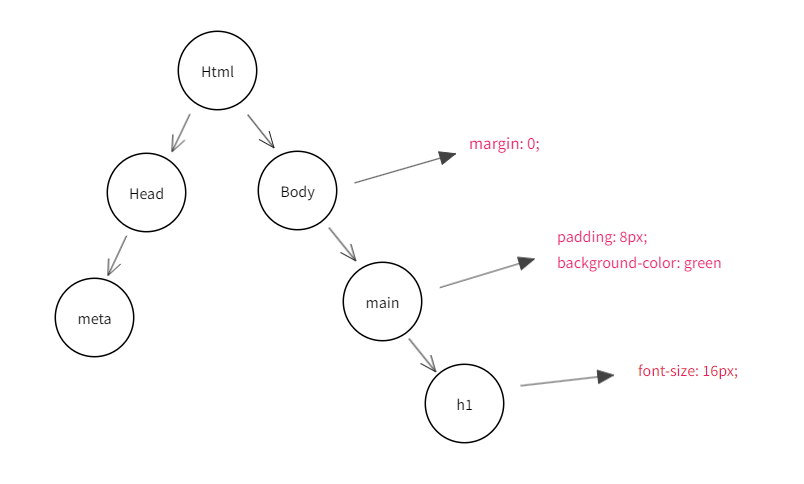
Working out which CSS rule applies to an element means matching selectors, which can get complex. You can simplify it by:
-
Simplify your selector:
adopt methodologies like BEM. This makes selectors easier to write.
-
Eliminating unused CSS:
removing unused CSS reduces the browser's workload. It also ships a smaller bundle, so pages load faster.
-
-
Render Tree:
The browser combines the CSSOM and DOM trees into a render tree, which holds only the elements visible on screen.
The browser starts at the root of the DOM tree and walks each node. Some nodes are skipped, such as meta tags, script tags, and any nodes hidden via CSS rules like
display: none -
Layout:
In the layout stage, the browser calculates the position and size of each element based on its style and content. It works out how elements are arranged relative to each other in the document flow.
To see this step in detail, use the performance tab in Chrome DevTools.
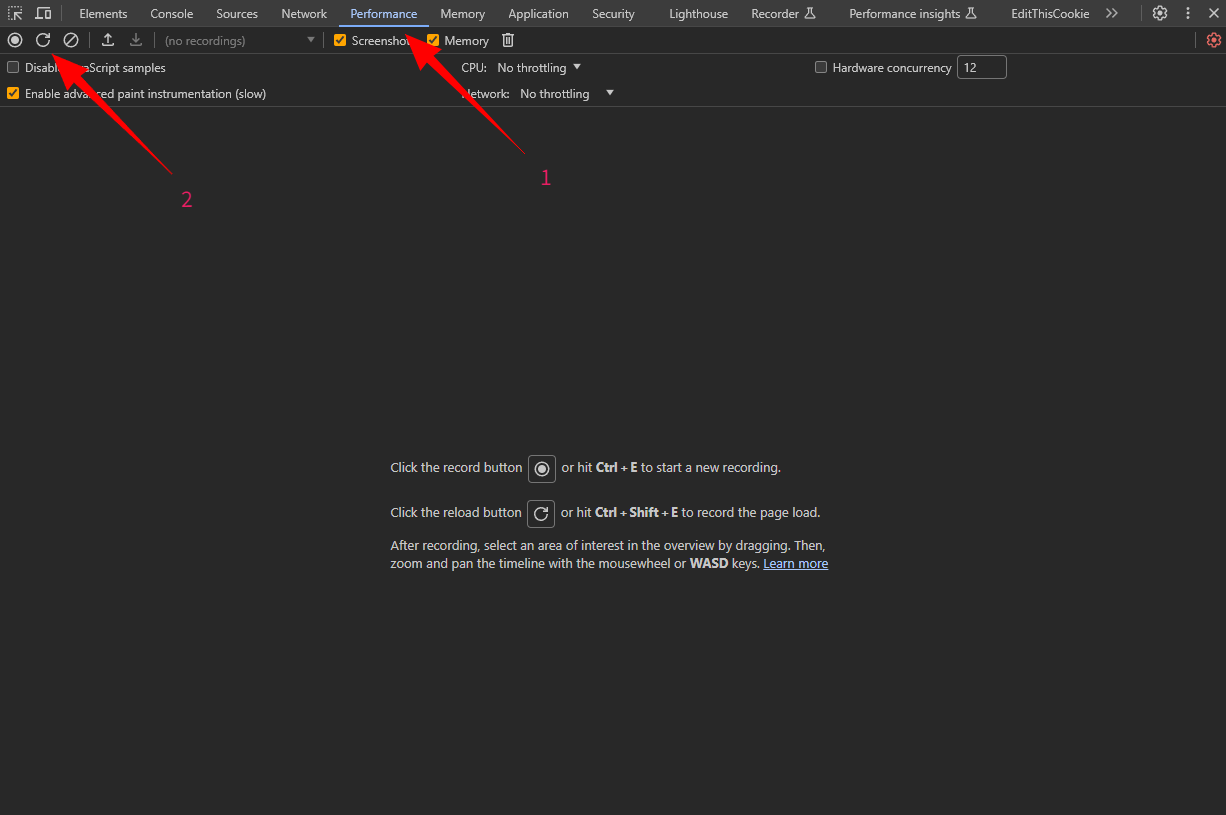
after a few seconds, results show up like this
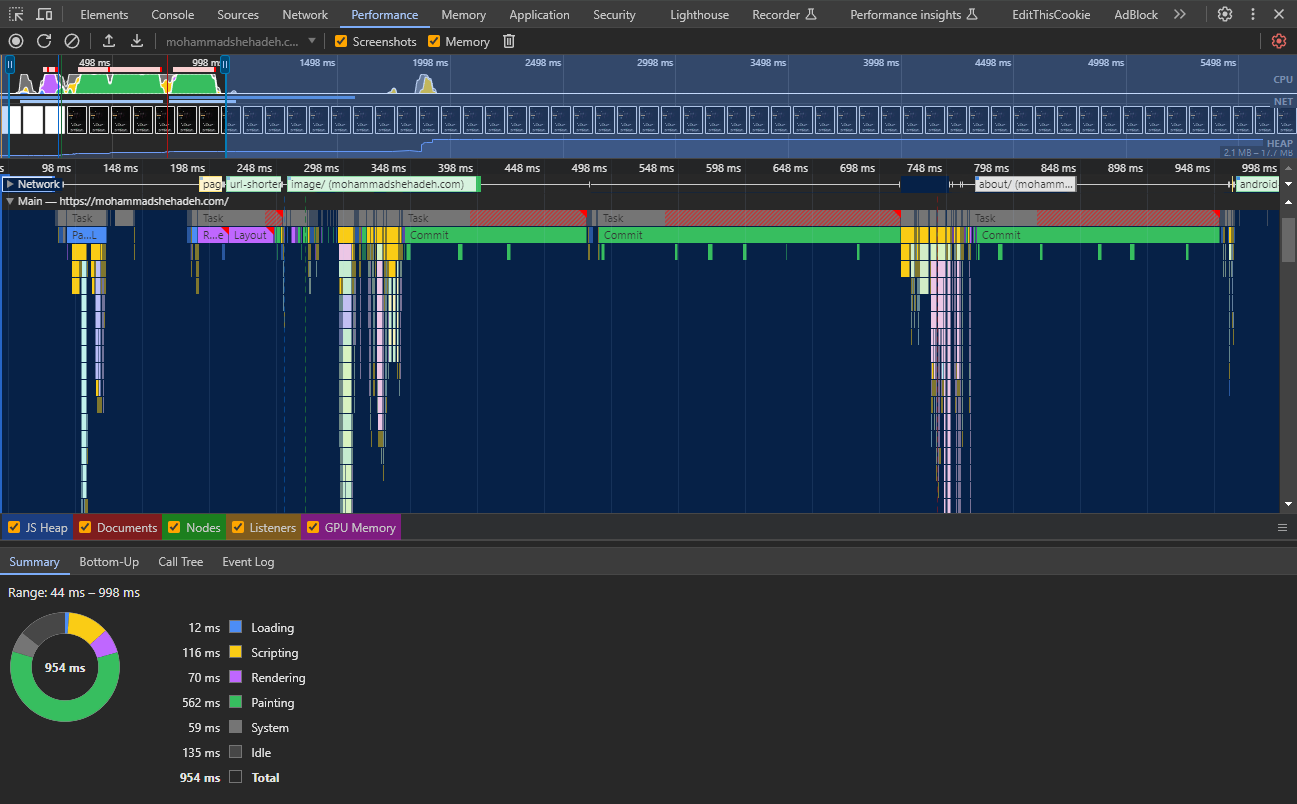
Loading: the time the browser takes to load your bundle from the server.
Scripting: the time the browser takes to parse your JavaScript.
Rendering: this step combines two steps, the style calculations and the layout.
Painting: the browser fills the screen pixel by pixel.
System: other browser work, such as composition (explained in the next section).
Idle: the website is ready for user interactions.
Zoom in on the DevTools results
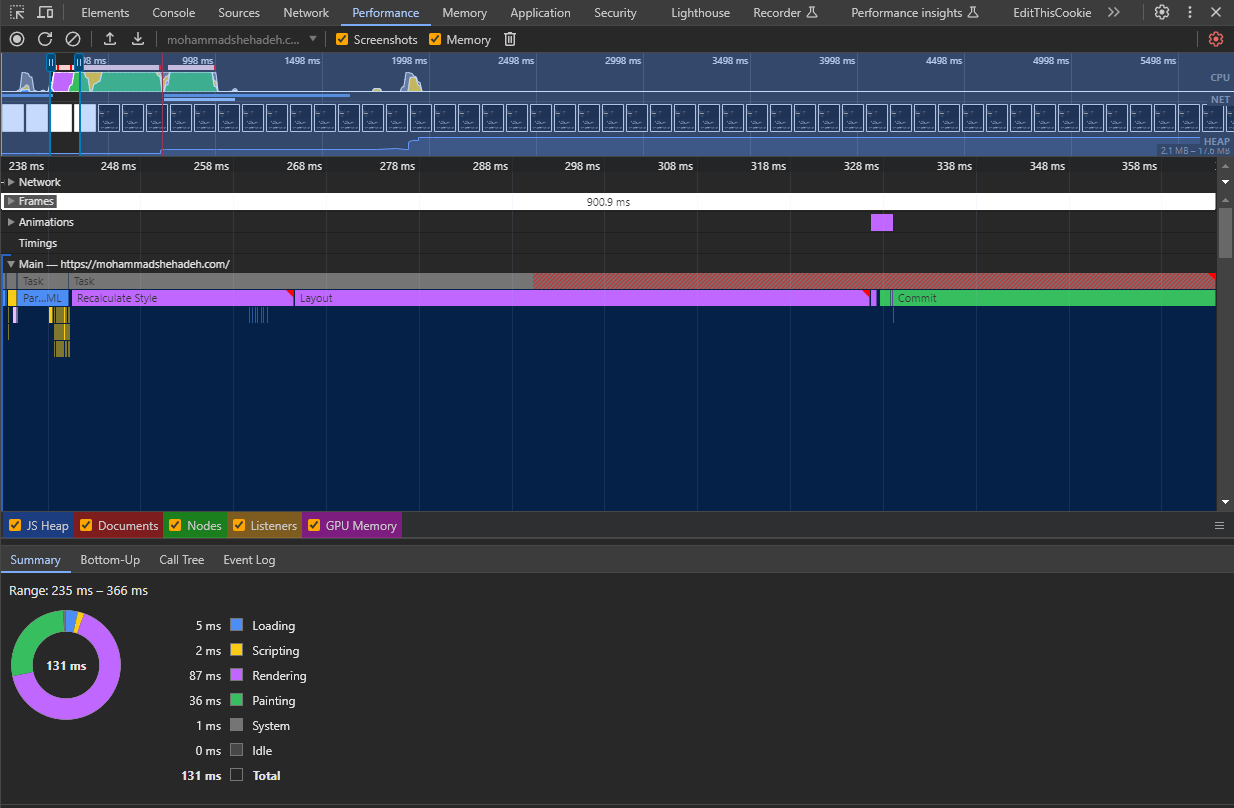
You will see two purple chunks. The first is recalculate styles, where the browser figures out which CSS rules apply to which elements, as covered in the CSSOM section. The second is layout, where the browser calculates the position and size of each visible element on the page.
-
Paint:
After layout, the browser moves to the paint stage. Here it fills in the pixels with the colors and styles from the CSS, rendering text, images, backgrounds, and borders.
Chrome DevTools has an option that shows you the painting process.
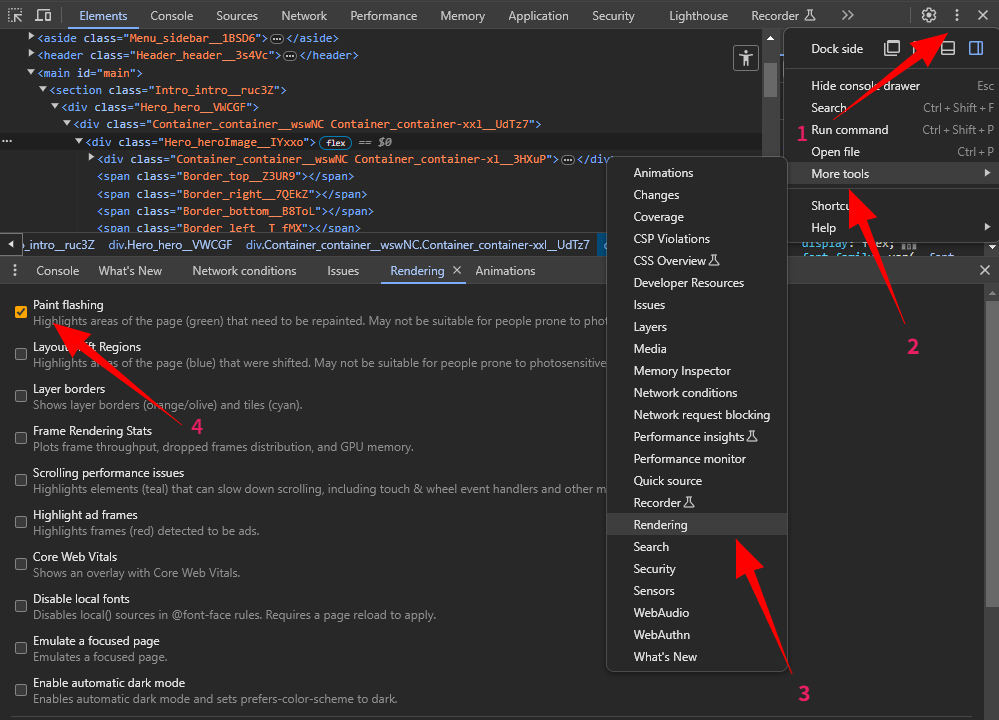
The drawing is done onto multiple surfaces called layers.
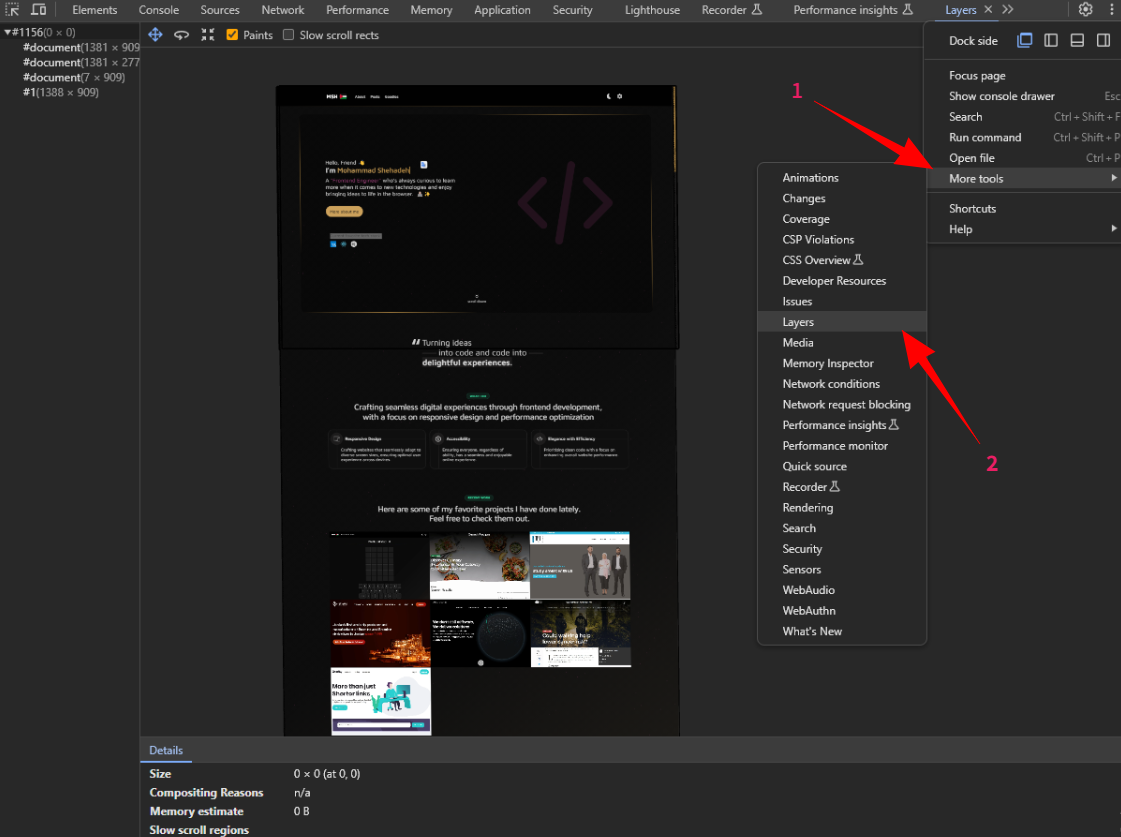
The browser can paint into multiple layers when needed. The benefit is that elements which repaint often, like those moving on-screen with transforms, can be handled without affecting other elements.
Chrome DevTools has an option that shows you the layers.
-
Composite:
The composite stage combines the painted layers into the final view of the web page. It accounts for the stacking order of elements, transparency, and blending modes, bringing the layers together to produce the pixels shown on screen.
Key Insights
When user interactions change the page through JavaScript, the browser redoes some of this work. Understanding the stages above helps you make the browser do less work.
Browser Rework Scenarios
-
Layout -> Paint -> Compose
- Triggered by: Changing element dimensions (width, height, padding, margin)
- Impact: Browser recalculates positions of all elements
- Optimization Tips:
- Use CSS transforms instead of changing dimensions
- Leverage layers and layout boundaries
- Minimize layout thrashing
-
Paint -> Compose
- Triggered by: Visual changes (color, background-color, border-radius)
- Impact: Only affects visual appearance, no layout changes
- Optimization Tips:
- Use CSS properties that don't trigger layout
- Batch visual changes together
- Use opacity and transform for animations
-
Compose Only
- Triggered by: Transform changes (translate, scale, rotate)
- Impact: Minimal performance cost
- Optimization Tips:
- Use transform for animations
- Leverage GPU acceleration
- Keep animations on separate layers
Performance Optimization Checklist
-
Layout Optimization
- Use CSS transforms instead of position changes
- Avoid layout thrashing
- Use CSS containment where appropriate
- Minimize DOM depth
-
Paint Optimization
- Use CSS properties that don't trigger layout
- Implement will-change for elements that will animate
- Use opacity and transform for animations
- Minimize repaints
-
Layer Management
- Use z-index appropriately
- Implement proper stacking context
- Monitor layer count in DevTools
- Use transform3d for GPU acceleration
Check the CSS Triggers List to see the cost of each CSS property change.
